Assign licenses to your team
The Licenses page of the account dashboard is where owners and admins of an organization give Pro Business licenses to their engineers. It appears once the organization has a Pro Business subscription; Pro Individual has no licenses to assign.
Read the Licenses page
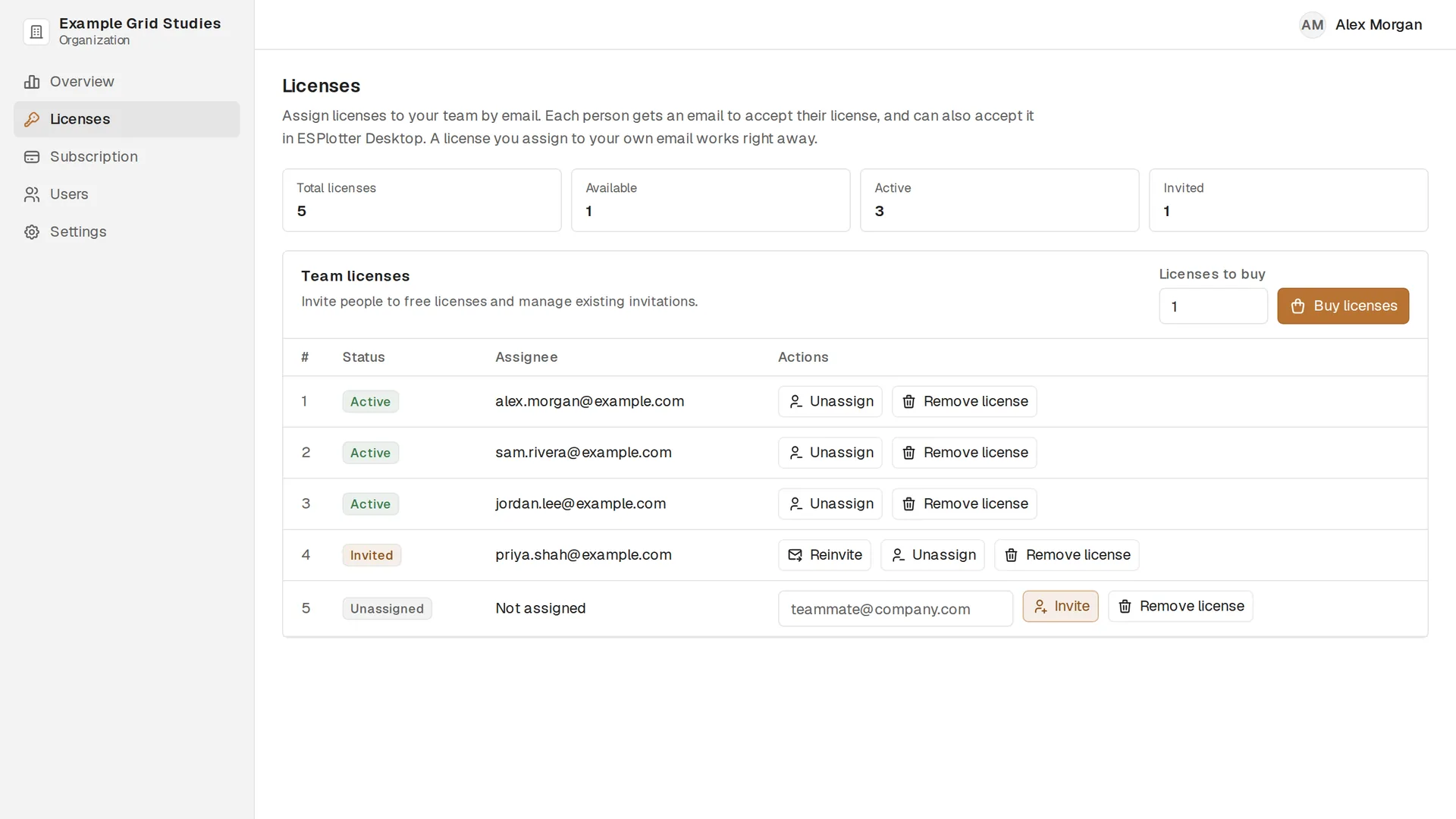
The counts at the top show Total licenses, Available, Active, and Invited. Each license is counted once, in its current status:
| Status | Meaning |
|---|---|
| Unassigned | Free. Type an email in its row to assign it. |
| Invited | Assigned, but the person has not accepted it yet. |
| Active | Accepted. The person can use ESPlotter. |
| Removed at renewal | Still paid for, and leaves the subscription at the next renewal. |
License keys are never shown: a license belongs to the email it is assigned to.
Assign a license
- In an Unassigned row, type the person's email.
- Choose Invite.
The row becomes Invited and the person receives an email to accept the license. A license you assign to your own email is active at once, because you made the decision yourself; assign one to yourself if you will use ESPlotter.
Each email can hold only one license of the subscription. If the email cannot be sent, the license stays assigned and the page says so; choose Reinvite to send it again. Reinvite also helps when someone cannot find the email.
What the person receives
Assigning a license sends one email. Someone who is not in the organization yet is invited to join it with a Pro Business license; someone who already belongs to it is told that a Pro Business license was assigned to them.
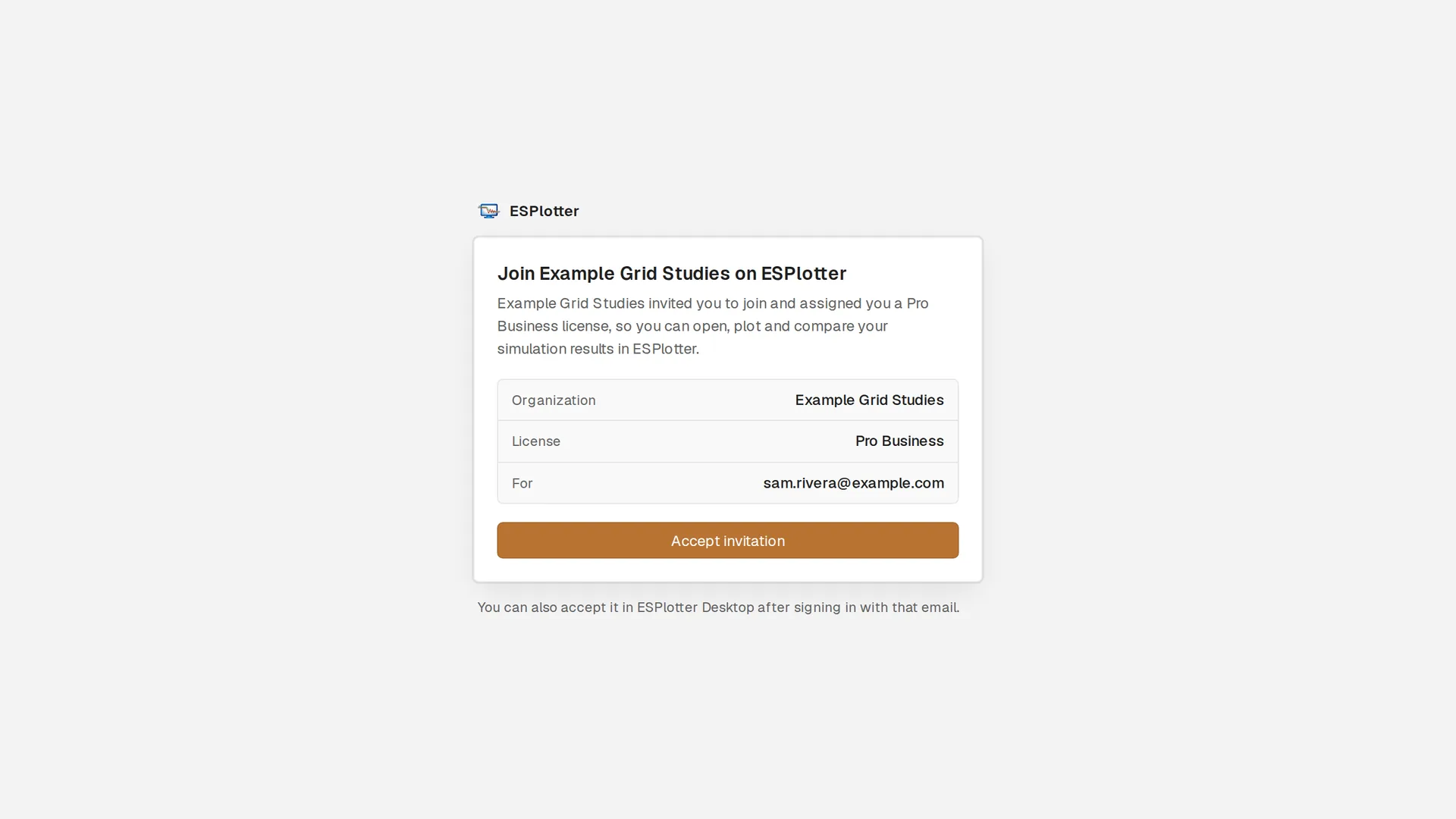
The email button opens the acceptance page. The person signs in, or creates an ESPlotter account, with the assigned email and chooses Accept invitation, which joins the organization and activates the license in one step. People who already belong to the organization see Accept license instead. Opening the link from the license email also confirms their email, so they can accept at once.
They can also accept from whichever place they open first:
- ESPlotter Desktop: the license screen, or Settings > Account, shows the offer with Accept license. See Sign in and get a license.
- The dashboard Overview: Your license shows the offer with Accept license.
Accepting from Desktop or the Overview without having opened the email link needs a confirmed email first. Once accepted, the row becomes Active, and signing in to ESPlotter with that email is all the person needs on any computer.
When the person already pays for Pro Individual
An active Pro Business license cancels the person's own Pro Individual automatically, so nobody pays twice. This happens when they accept a license assigned to them, and also when an owner or admin assigns a license to their own email, because that license is active at once:
- A Pro Individual still in its free trial ends at once and is never charged.
- A paid Pro Individual stops renewing and stays available until the end of the period already paid, without a refund.
- Its current discount ends and its waiting discount codes are discarded.
Before accepting, the acceptance page, the dashboard Overview, and ESPlotter Desktop say what accepting ends. Afterwards, the person receives an email confirming that their Pro Individual was cancelled and that nothing more will be charged for it. Joining an organization without a license does not cancel anything.
If you are an owner or admin and pay for your own Pro Individual, upgrade it to Pro Business instead of buying a separate Pro Business and assigning yourself a license. The upgrade turns the same subscription into Pro Business, keeps your license working, and credits the unused part of your Pro Individual, while a separate purchase cancels your Pro Individual without a refund for the period you already paid.
Reassign a license
Choose Unassign and Confirm unassign to take a license from its person. They lose access at once and the license becomes Unassigned, ready for someone else. The person stays in the organization, so you can assign them a license again later.
Remove licenses
Choose Remove license to pay for one license less. The Confirm remove license dialog names the assigned person, who loses access at once. You have already paid for the license, so it stays in the subscription until the next renewal and nothing is refunded; from that renewal on you are no longer charged for it. Until then, Keep licenses in the notice above the table cancels the removal.
Buy more licenses
Enter the number in Licenses to buy and choose Buy licenses. The Confirm purchase dialog shows the price before you confirm:
- The licenses are added now, and your saved payment method is charged today for the rest of the current billing period. If the payment fails, no licenses are added.
- If licenses are scheduled to be removed at the renewal, buying first keeps those, which you already paid for, and charges only the licenses beyond them.
- Without a Pro Business subscription yet, choose the Billing period and continue to the checkout.
Amounts are before taxes; the taxes of your billing country are added to each invoice.
When someone loses their license
A person whose license is removed keeps their account and their place in the organization, but cannot use ESPlotter until they get a license again. If their account already had a free trial, they do not get a second one. They can buy Pro Individual for themselves from My subscription in the dashboard.
When the subscription ends, every assigned person loses access. If a renewal leaves fewer licenses than people, licenses of invited people who have not signed in yet are released first, then the most recently assigned ones, so the longest-standing users keep access.