Manage your subscription
The subscription pages of the account dashboard are where you change how ESPlotter is billed. Every change opens a confirmation first, so you see what it costs and when it applies before anything happens.
Your organization's plan and your own plan are on separate pages, so you always know which one a change applies to:
- Personal accounts manage their own Pro Individual on Subscription.
- Owners and admins of an organization manage its Pro Business on Company subscription, whoever bought it. If they also pay for a Pro Individual of their own, they manage it on Personal subscription.
- Organization members see Personal subscription only when they have a subscription of their own or their organization has not given them a license. That subscription is theirs; the organization does not see or pay for it.
The billing portal returns to the page you opened it from.
Amounts in the screenshots are examples. Your dashboard shows your own prices.
Read your subscription
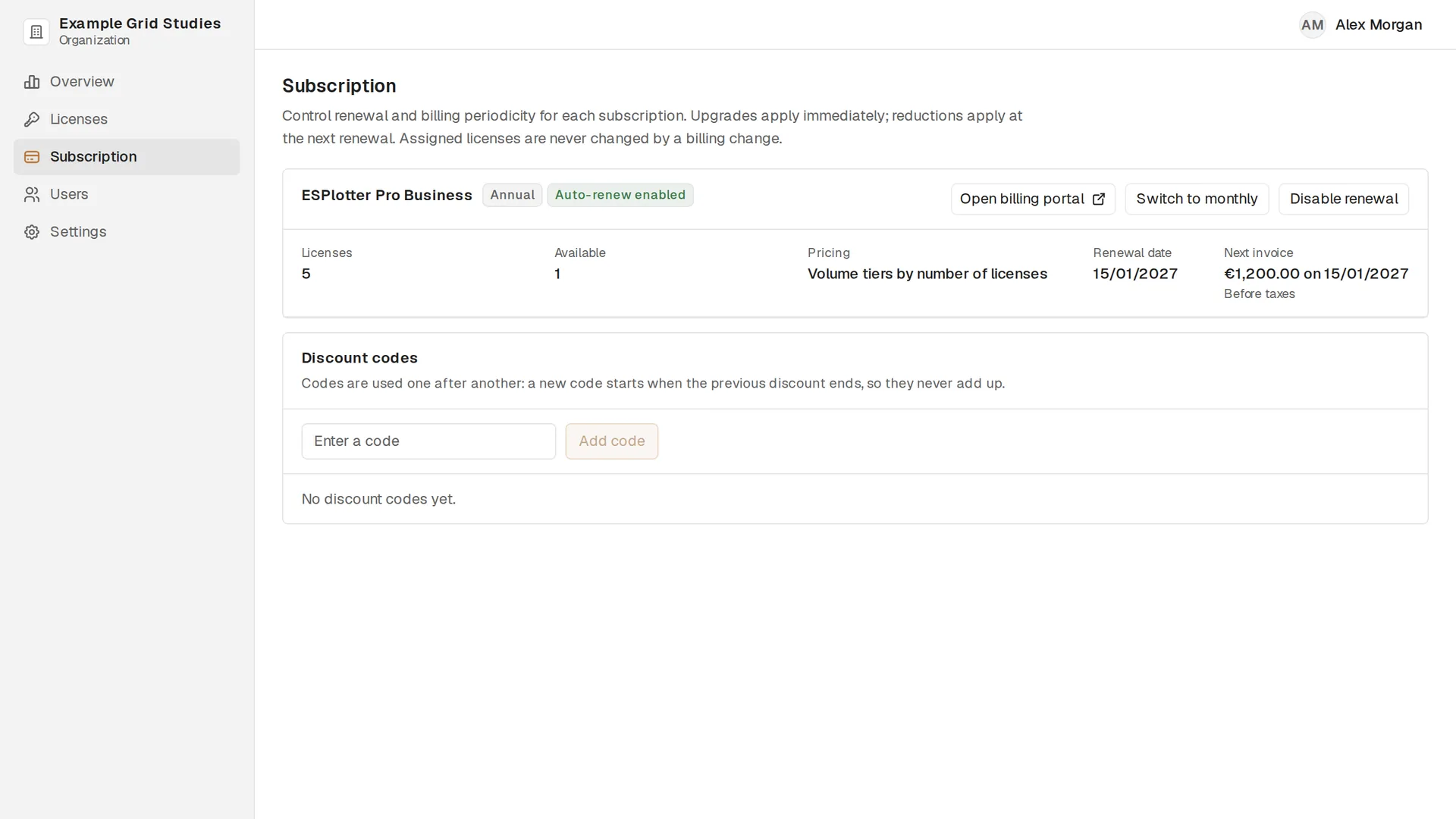
Each subscription shows its name with tags for the billing period (Monthly or Annual) and its state (Free trial, Auto-renew enabled, or Cancels at period end), then:
| Field | What it shows |
|---|---|
| Licenses, Available | Pro Business only: how many licenses you pay for and how many are not assigned yet. |
| Price per license | The price per month or year, marked Taxes included or Before taxes. Volume pricing reads Pricing: Volume tiers by number of licenses. |
| Renewal date | The next renewal. It reads Trial ends on during a free trial and Ends on when renewal is off. |
| Next invoice | The amount and date of the next invoice. Pro Individual amounts include taxes; Pro Business amounts are before taxes. |
| Scheduled changes | Changes waiting for the renewal, such as a switch to monthly billing or fewer licenses, with their date. |
Add a payment method during a free trial
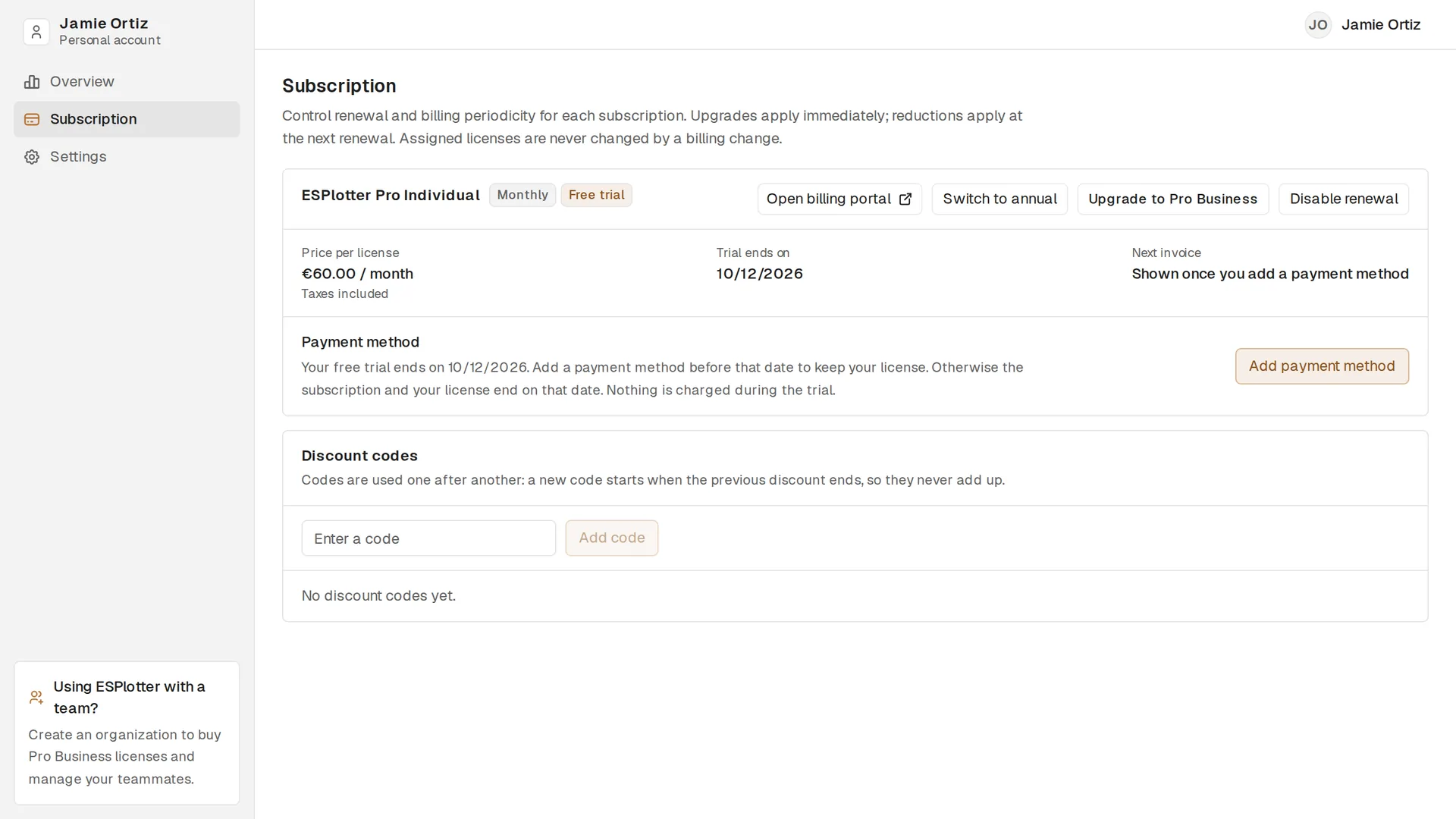
During a Pro Individual free trial, the Payment method row shows when the trial ends. Choose Add payment method to open the billing portal and add a card. With a payment method, the first invoice is charged when the trial ends and the subscription continues. Without one, the subscription and your license end on that date. If you have not added one, ESPlotter emails you three days before the end.
Change the billing period
Choose Switch to annual or Switch to monthly. A change that makes you pay more applies at once; a change that makes you pay less applies at the next renewal:
| Change | When it applies |
|---|---|
| Monthly to annual | Now. Your saved payment method is charged today, minus a credit for the unused part of the current month. The renewal date stays the same. If the payment fails, nothing changes. |
| Annual to monthly | At the renewal. You keep the year you already paid; nothing is charged or refunded today. Until then, Keep annual billing cancels the switch. |
| Any change during a free trial | Now, without any charge. Your first invoice uses the new billing period. |
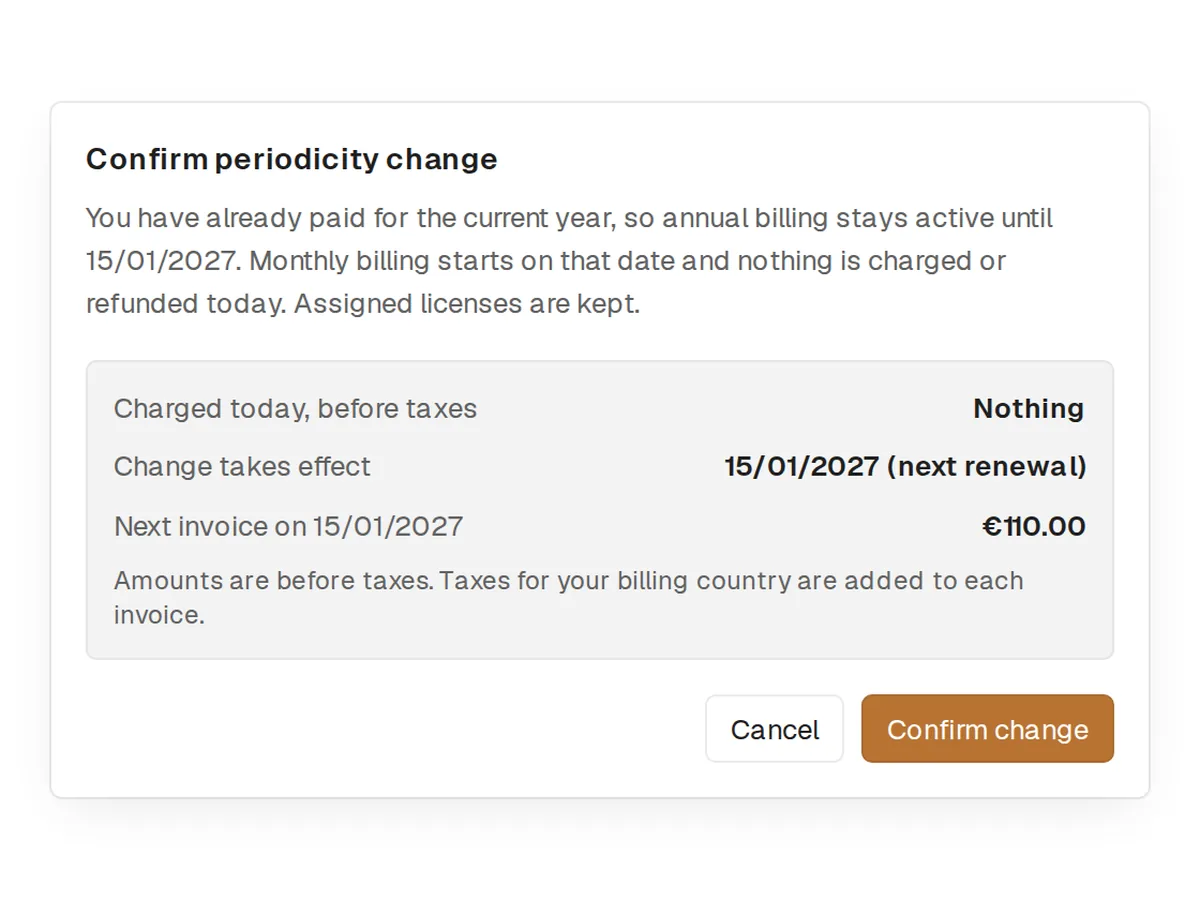
The Confirm periodicity change dialog shows Charged today, Change takes effect for a change at the renewal, and the Next invoice. Assigned licenses are kept, so nobody on your team loses access or needs a new invitation.
Update your payment method and download invoices
Choose Open billing portal to review invoices and update the payment method. For a Pro Business subscription, every owner and admin of the organization opens the same billing account, the one that bought it, so any of them can update the card or download an invoice. A Pro Individual's portal is only for its owner.
Licenses, billing period, and renewal are changed only from the dashboard, because only there can you see which teammates a change affects before you confirm it.
Use a discount code
When the ESPlotter team gives you a discount code, enter it in Discount codes, below the subscription, and choose Add code. The page checks the code when you add it.
- Only one discount applies at a time. Codes wait in a list in the order you entered them, and each starts when the previous discount ends, so discounts never add up and the current one is never cut short.
- The table shows the discount that applies now (Active), then each waiting code (Next, then Waiting) with the invoices it is expected to cover.
- A code you add during a free trial starts with your first paid invoice.
- Up to five codes can wait at once, and the same code cannot be added twice. When no code can be added, the page says why.
- Remove takes a waiting code out of the list after you confirm it; the codes after it move up. A code that was never applied can be entered again later.
- If a code can no longer be applied when its turn comes, it shows Not applied, you receive an email, and the next code is used instead. Contact the ESPlotter team to check it.
The next invoice shows the amount you will pay and which discount it includes. A discount stays when you change licenses or billing period and when you upgrade to Pro Business.
Turn renewal off or on
Choose Disable renewal to let the subscription end when the paid period, or the free trial, finishes. The Confirm renewal cancellation dialog shows the end date; nothing is charged or refunded. On that date every assigned user loses access to ESPlotter, and any scheduled license or billing change is discarded. Until then, Enable renewal turns it back on.
When a subscription ends, its current discount and its waiting discount codes end with it.
Upgrade to Pro Business
An owner or admin of an organization without Pro Business can turn their own Pro Individual into the organization's Pro Business when the team needs licenses. A personal account does it by creating its organization, which upgrades the plan in the same step.
- On Personal subscription, choose Upgrade to Pro Business.
- Enter the Number of licenses. Your own license is one of them.
- Review the charge. You pay today for the Business licenses until the renewal date, minus a credit for the unused part of your Individual plan, so you never pay both plans. Amounts are before taxes.
- Choose Upgrade and pay now. The same subscription keeps its billing period, and you continue on the Licenses page to assign the rest.
If your organization already has Pro Business, the upgrade is not offered: assign yourself one of its licenses from Licenses instead. Your Pro Individual is then cancelled, as explained in When the person already pays for Pro Individual.
Pro Business has no free trial. If you upgrade during your Pro Individual trial, the dialog warns that Your free trial ends when you upgrade.: tick I understand that my free trial ends today., and add a payment method first if you have none.