Set up your organization
An organization is how a company uses ESPlotter as a team. Pro Business licenses belong to an organization, so its owners and admins can buy them, assign them to engineers by email, and manage who has access. Engineers who work alone do not need one.
Create an organization
Any account can create an organization from the account dashboard at any time, and becomes its owner:
- Choose Create organization in Using ESPlotter with a team? on the Overview, or select the same card at the bottom of the menu.
- Enter the Organization name: your company or team. You can change it later in Settings.
- Choose Create organization.
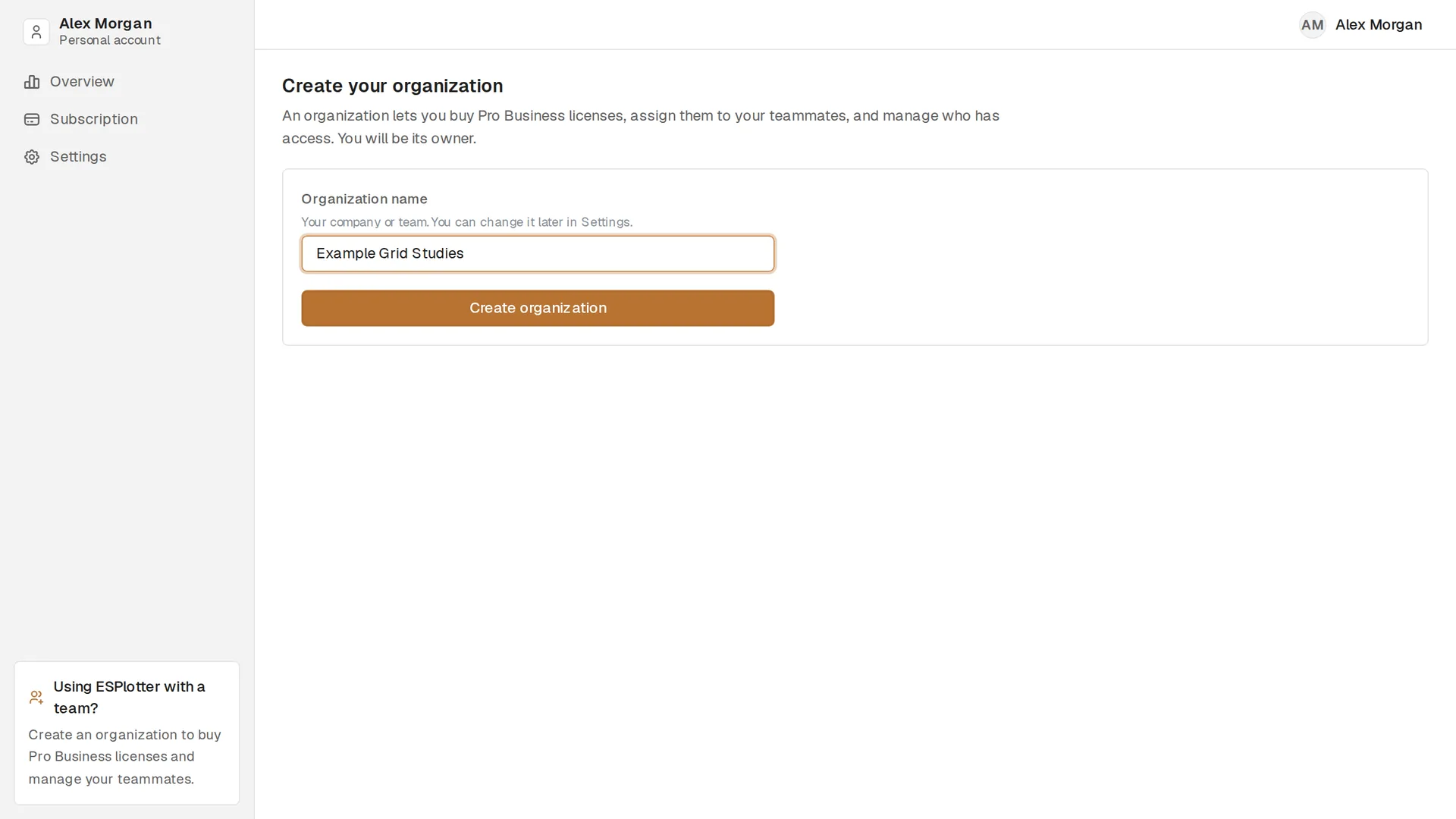
When you start a Pro Business purchase without an organization, ESPlotter shows the same form with Create organization and continue and then goes on to the checkout.
If you pay for a Pro Individual, creating an organization also turns it into the organization's Pro Business:
- Enter the Organization name and choose Continue to licenses and price.
- The confirmation explains what happens: your Pro Individual becomes the organization's Pro Business, and your own license becomes one of its licenses, so you keep working.
- Enter the Number of licenses and review the charge, as in Upgrade to Pro Business.
- Choose Create organization, or Create and pay now when the upgrade charges today. The organization and its Pro Business are created together, and you continue on Licenses to assign the rest. Your own license needs no acceptance and no email.
If the payment fails, the organization is not created and nothing changes, so you can try again.
The menu then adds Company subscription and Users, and Licenses and Usage once the organization has a Pro Business subscription. The top of the menu shows the organization name instead of Personal account. If you join an organization, or are made an owner or admin, while you pay for a Pro Individual, you keep it on Personal subscription: joining gives no license by itself, so you keep using your own until you have an active Pro Business license. Getting one cancels your Pro Individual, as explained in When the person already pays for Pro Individual.
Understand the roles
| Role | What it allows |
|---|---|
| Owner | Full control, including adding, changing and removing other owners. |
| Admin | Manages licenses, billing, users and settings, but cannot change owners. |
| Member | Uses ESPlotter with an assigned license. Joins by accepting the license assigned to them. |
Owners and admins manage the same things. Only an owner can invite or promote someone as owner, or change or remove another owner, and the last owner cannot stop being one, so an organization always keeps someone in full control. On the Users page, the information icon next to Role shows these descriptions.
Manage people on the Users page
Users lists the people who belong to the organization and the invitations still waiting, with counts of owners, admins, members, and pending invites.
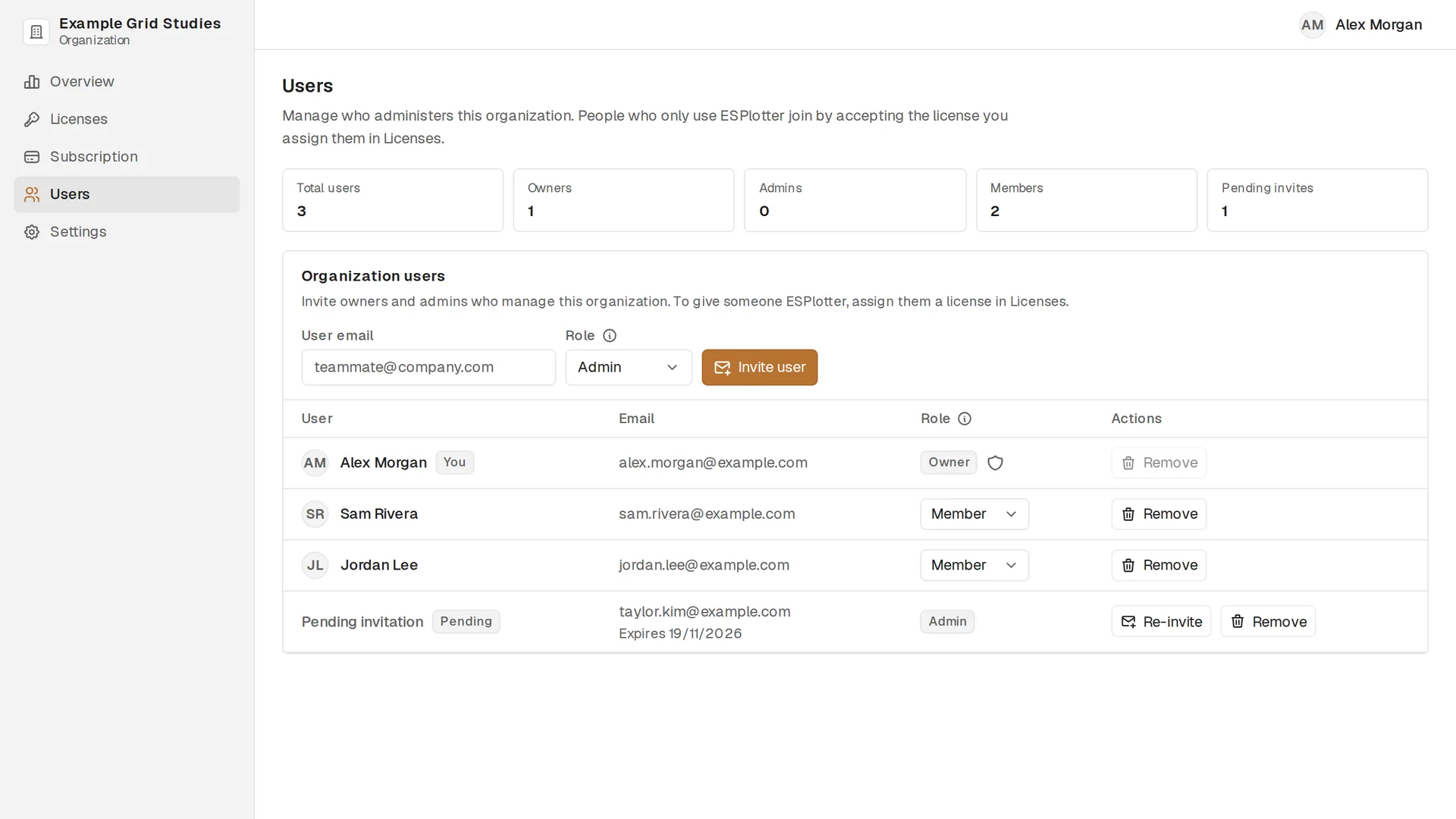
- Invite an owner or admin: enter the User email, choose the Role, and choose Invite user. Admins can invite admins; owners can invite admins and owners. The invitation email only asks the person to join; they do not use a license unless someone assigns one to them.
- Give someone ESPlotter: assign them a license on the Licenses page. Accepting the license also joins the organization, so engineers who only use ESPlotter never need a Users invitation.
- Invitations show one row per email, with the latest expiration date. Expired invitations stay visible so you can re-invite the person. Re-invite sends a new link, updates the expiration date, and invalidates earlier links for that email in the organization. Remove withdraws the invitation.
- Change a role with the selector in the Role column.
- Remove a person with Remove and Confirm remove. Taking away someone's license from Licenses keeps them in the organization; removing them from the organization is done here.
Accept an invitation
The invitation email opens a page titled Join followed by the organization name, with the organization, the role, and the email the invitation is for. Sign in, or create your ESPlotter account, with that email, then choose the Join button. Opening the link from the invitation email also confirms your email, so you can join at once. If you sign in without that link, confirm your email first; the page offers to send the confirmation email again.
Set the organization name and logo
Owners and admins find Organization profile in Settings:
- Logo: choose Upload, or drag an image onto the row. A square image under 1 MB works best. Remove clears it.
- Organization name: edit it and choose Save.
Each setting is saved on its own as soon as you upload, remove, or save it. The name and logo appear in invitation and license emails and in ESPlotter Desktop.
See how your organization uses ESPlotter
Owners and admins of an organization with Pro Business open Usage in the menu to see how the organization uses ESPlotter. Choose Last 7 days, Last 30 days, Last 90 days, or Last 12 months at the top of the page. Point at a week in a chart to see its values and total.
| Section | What it shows |
|---|---|
| Adoption | Who is active, who is getting started or has not accepted their license yet, and the day each person was last active. Assign licenses appears while some are not assigned. |
| Automation | How much of the work people, scripts, and AI agents did. Work is files opened, charts exported, and reports exported. |
| Time saved | Time scripts and AI agents saved, from the minutes each task takes your team, and what it is worth at the cost of one hour of a person's work. |
| Work by simulation tool | Simulation files opened per week, split into PSS/E, PSCAD, and other files. |
| Reports | Reports exported per week, as PDF, Word, or images. |
| Setup problems | Files that could not be opened because of how a computer is set up, such as Python or the PSS/E tools not configured, with the people affected. |
| ESPlotter versions | The version each person last used, marking those with an update available. |
To estimate time saved, choose Edit settings in Time saved and enter how many minutes a person on your team takes to open and review a simulation file, export a chart, and produce a report. Until you do, the section asks for them instead of guessing. To also see what that time is worth, enter the Cost of one hour of a person's work, such as what an hour of one engineer costs you, and choose its currency: euros, US dollars, or pounds. Time saved and its value are totals for the whole organization in the chosen period.
Usage comes from ESPlotter Desktop and the Python SDK of the people using your Pro Business licenses. It is counted per day and never includes file names, file contents, channel or chart names, report text, or data. Work done with the Python SDK or offline appears after ESPlotter Desktop is next opened online on that computer. Counts are kept for 25 months.