Use the account dashboard
The account dashboard is the web side of your ESPlotter account. It shows whether your license works, and it is where you choose a plan, manage billing, and, for teams, manage the organization and its licenses. Sign in with Sign in on the ESPlotter website, or choose Open dashboard in Settings > Account in ESPlotter Desktop.
Find your pages
The menu shows only the pages your account can use:
| Page | Who sees it | Guide |
|---|---|---|
| Overview | Everyone | Read the Overview |
| Licenses | Owners and admins of an organization with Pro Business | Assign licenses to your team |
| Company subscription | Owners and admins of an organization: the organization's Pro Business | Manage your subscription |
| Personal subscription | Owners, admins and members with a Pro Individual of their own; members also when their organization has not given them a license | Manage your subscription |
| Subscription | Personal accounts without an organization | Manage your subscription |
| Users | Owners and admins of an organization | Set up your organization |
| Settings | Everyone | Change settings and the theme |
Your Profile opens from My profile in the menu under your name at the top right, which also has Sign out.
Read the Overview
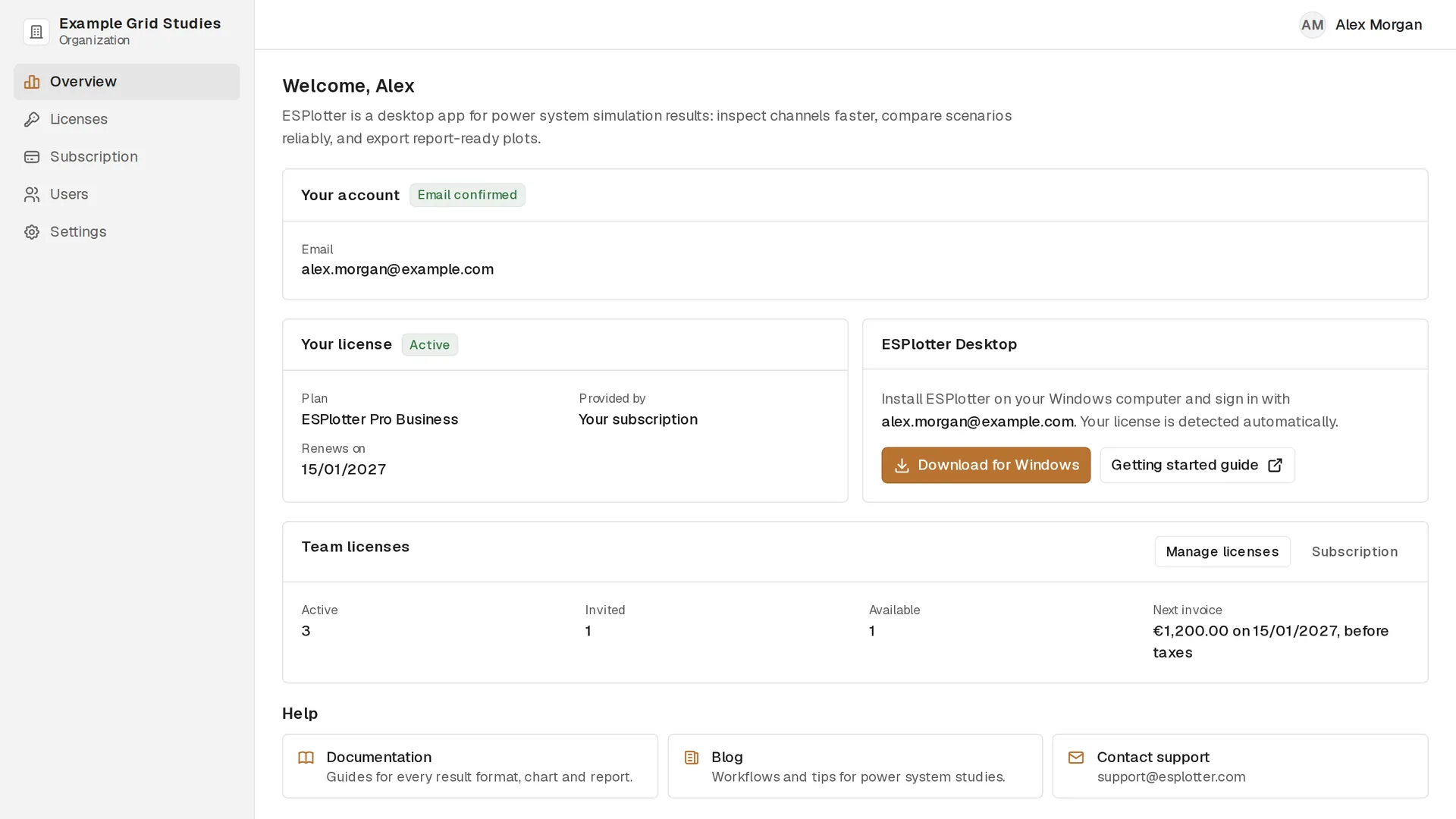
- Your account shows your email and whether it is confirmed.
- Your license shows Active, None yet, or Waiting for you, with the Plan, who it is Provided by (your subscription or your organization), and the date it renews, ends, or its free trial ends. It warns when your own free trial still needs a payment method. When a company license waits for you, Accept license accepts it right there. Without a license, Choose a plan opens the plans; an owner or admin whose team has free licenses is pointed to Licenses to assign one to their own email instead of buying another.
- ESPlotter Desktop offers Download for Windows and the Getting started guide, and reminds you which email to sign in with.
- Team licenses, for owners and admins, shows the Active, Invited, and Available licenses and the Next invoice, with Manage licenses.
- Help links to the documentation, the blog, and support.
Confirm your email
Creating an account sends a welcome email that asks you to confirm your email address. You can use the dashboard right away, but starting a free trial, buying a plan, accepting a company license, and accepting an invitation all need the email confirmed, because every license belongs to an email.
While it is not confirmed, Your account shows Email not confirmed and Resend email, and Your license says Confirm your email to start a free trial or buy a plan. The confirmation link brings you back to where you were.
Edit your profile
Profile holds your Profile picture and Name. Choose Upload or drag an image onto the picture row; Remove clears it. Edit the name and choose Save, which turns on only after a change; Escape puts the saved name back. Role shows your current role in the organization.
- Change email asks you to approve the change from your current address, then verify the new one. Sign in with your current address until both steps are complete. Each link works once for one hour. Your accepted licenses, memberships and subscriptions stay with your account. If you see a license conflict, contact support.
- Change password asks for your current password and the new one twice. You stay signed in in this browser. Sign in again with your new password on other devices.
Change settings and the theme
Settings has Appearance for everyone and, for owners and admins, the organization profile. Each setting is saved on its own as soon as you change it.
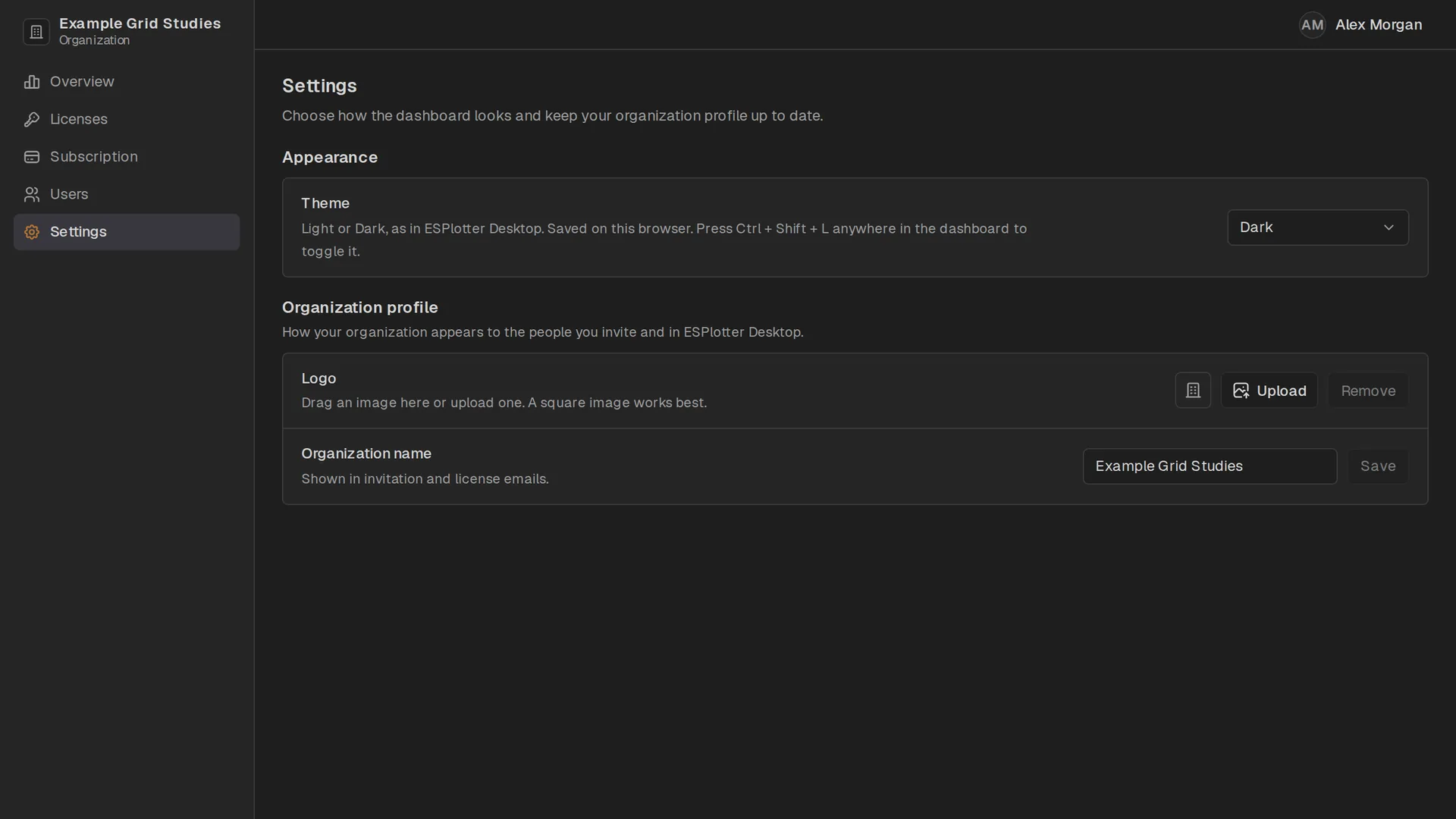
Choose Light or Dark in Theme, the same themes as ESPlotter Desktop. Press Ctrl + Shift + L anywhere in the dashboard to switch between them. The choice is remembered on that browser. The public website keeps its own look.
Pages stay up to date
Overview, Licenses, Users, and the subscription pages refresh themselves every few seconds while the tab is visible, and as soon as you return to it. You see a teammate accept a license, join the organization, or another admin change licenses or roles without reloading the page.
How ESPlotter Desktop picks up a new license
You never copy a license key. ESPlotter Desktop reads the license of the account you sign in with:
- After a checkout started from Desktop, Desktop checks every few seconds and opens the workspace by itself once the license is active.
- A company license assigned to your email appears in Desktop with Accept license.
- While you are signed in, Desktop confirms your license in the background, so a license that starts, renews, or ends on the web reaches Desktop without any action. On the license screen, Check for a company license checks again at once.
See Sign in and get a license for the Desktop side.