Set up PSS/E
ESPlotter reads PSS/E (also written PSSE) .out and .outx channel files through the PSS/E and dyntools installation on the same Windows computer. A .out extension can contain either ordinary or extended channel data; ESPlotter identifies the format from the file contents. Configure the two paths once, and either extension opens with the same charts, calculated channels, and exports as any other result. PSS/E .lpb and .plb files are plain text and open without PSS/E.
What you need
| File | Requirements |
|---|---|
.out / .outx | Windows with a compatible PSS/E/dyntools installation and the Python executable of that same version. |
.lpb | No PSS/E installation. |
.plb | No PSS/E installation. |
Configure the PSS/E paths
- Open Settings > General.
- Set PSS/E Python path to the Python executable that belongs to the installed PSS/E version.
- Set PSS/E dyntools path to the dyntools location of that same installation.
- Click Save next to each path.
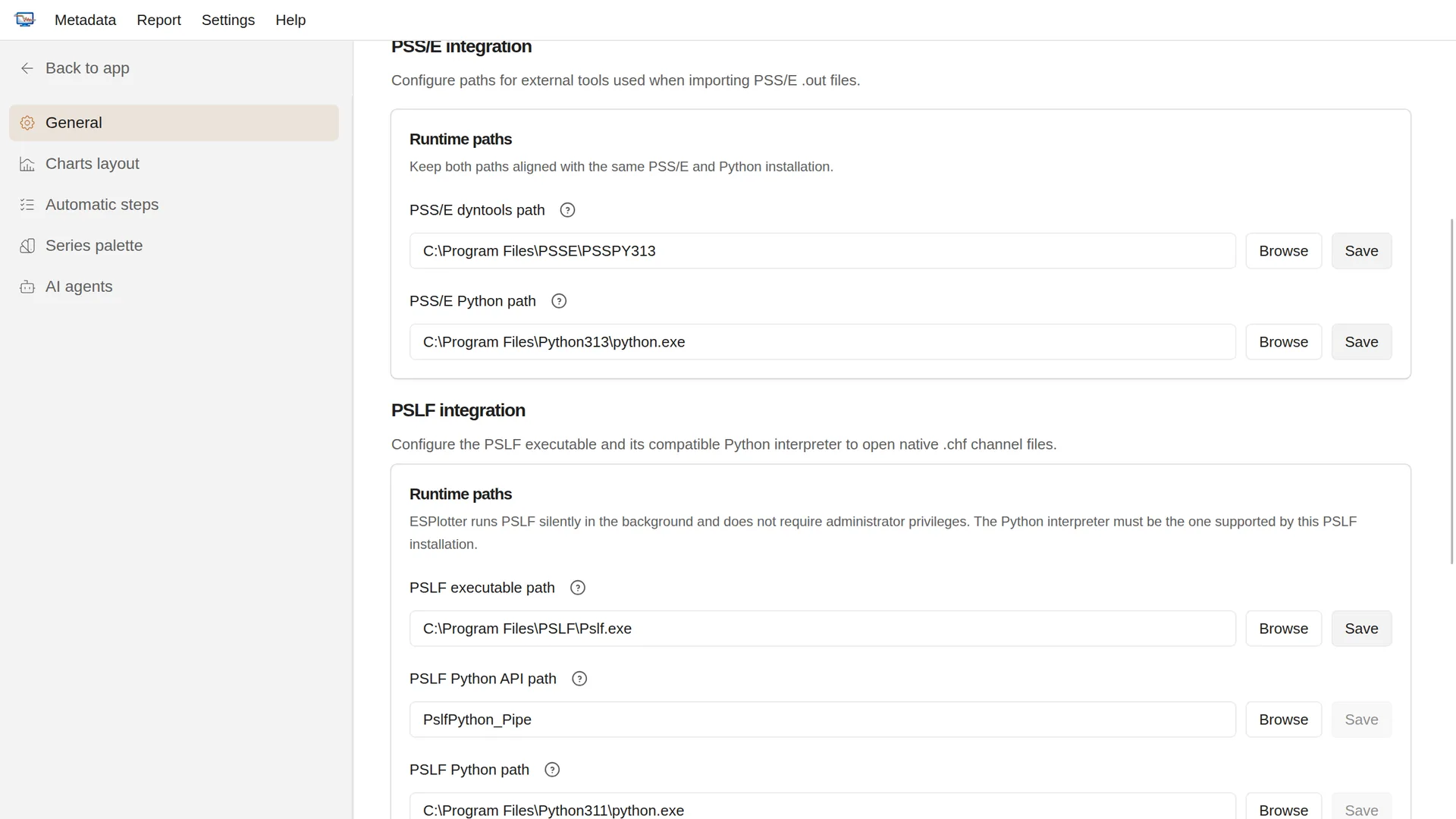
Both paths must come from the same PSS/E version. They are used only to read PSS/E results, not to run ESPlotter Python scripts.
When you use Browse for a path, the dialog starts from that setting's existing location. For a file path it opens in the containing folder; for a folder path it opens there. If the location no longer exists, it starts at C:\.
Open the file
Open the .out or .outx file with + at the top of the channel sidebar (Ctrl + O) or by dragging it onto the chart area. The file appears in the channel sidebar as a time-series result.
PSS/E channels load when you first use them. A NaN warning can therefore appear when you first plot or export a channel rather than right after opening the file.
Open LPB and PLB files
PSS/E .lpb and .plb files contain three headerless columns. ESPlotter accepts comma-separated or whitespace-separated rows and gives the columns fixed channel names:
| File | Columns |
|---|---|
.lpb | Time in seconds, P LOAD as Load Active Power, and Q LOAD as Load Reactive Power. |
.plb | Time in seconds, Voltage Playback, and Frequency Playback. |
Open them with + at the top of the channel sidebar (Ctrl + O) or drag them onto the chart area. They do not need the PSS/E Python or dyntools paths used for .out and .outx files. Plot and export their channels like any other time-series file.
Export the data
All three formats open as time series and export as CSV, TXT, or JSON. CSV and TXT exports of a .out file keep NaN samples as literal NaN cells in their original positions. See Export charts and data.
Automate with Python
Python scripts open .out and .outx files with workspace.open_file(...). Headless scripts on Windows reuse the paths saved in Settings > General, so configure them once in ESPlotter. Desktop does not need to stay open, but the PSS/E installation and a license from a recent Desktop sign-in must be available. See Headless mode.
A numbered .out from PSCAD can look like a PSS/E file. When a script must choose, pass out_format="psse" or out_format="pscad"; see Set up PSCAD.
Troubleshooting
If a .out file cannot be opened, the error notice identifies whether the problem appears to be:
- missing Python or DYNTOOLS configuration;
- an invalid tool path;
- incompatible versions;
- an unavailable library; or
- an unreadable result file.
The notice offers Open Settings to reach Settings > General in one click, and keeps the original error details. Check that both paths point to the same PSS/E version, then open the file again.
If the problem remains, copy the complete error and follow Ask for support. Include the PSS/E version and whether the shipped examples/data/example.out sample opens.
Related guides
- Supported file formats
- Set up PSCAD
- Settings
- Inspect network metadata for PSS/E
.raw,.rawx,.sav,.cnv, and.seqnetwork files - Troubleshooting