Set up PSLF
PSLF .chf files are native binary channel files. ESPlotter does not parse their bytes directly: it starts the installed PSLF Python API in the background, asks PSLF to export the channel data to a temporary CSV, and then uses the normal ESPlotter channel-file import flow. The original .chf path remains associated with the opened file. Set up the integration once on each Windows computer where you open .chf files.
What you need
Before opening a PSLF .chf file, prepare the Windows computer with:
- A PSLF installation that includes
Pslf.exeand its neighbouringPslfPython_PipeorPslfPythondirectory. - The
PSLF_PYTHON.pymodule inside that API directory. - A
python.exeversion supported by that PSLF installation. pywin32installed in that same Python environment.- A
.chffile that contains simulation samples if you want to plot data.
The Python version is determined by the PSLF installation, not by the newest Python version installed on the computer. For example, an installation that provides a wheel named pywin32-306-cp311-cp311-win_amd64.whl requires a CPython 3.11 interpreter. Python 3.14 is not a compatible substitute for that installation, even if it is otherwise available and works for other applications.
Typical paths are:
PSLF executable: C:\Program Files\GE PSLF\Pslf.exe
PSLF Python API: C:\Program Files\GE PSLF\PslfPython_Pipe\PSLF_PYTHON.py
Compatible Python: C:\Program Files\Python311\python.exe
The paths can differ by PSLF release and by Windows installation. Use the paths from the computer where PSLF is installed.
Check the installation in PowerShell
These checks are optional, but they help identify a bad path or Python mismatch before opening ESPlotter. Replace the paths with the values from your installation:
$pslf = 'C:\Program Files\GE PSLF\Pslf.exe'
$pslfPython = 'C:\Program Files\GE PSLF\PslfPython_Pipe\PSLF_PYTHON.py'
$python = 'C:\Program Files\Python311\python.exe'

Test-Path $pslf
Test-Path $pslfPython
& $python --version
& $python -c "import win32api, win32con, win32file, pywintypes; print('pywin32 OK')"
The first two commands should return True, the Python version should be the version supported by PSLF, and the final command should print pywin32 OK. A ModuleNotFoundError means that pywin32 is not available in that interpreter; installing it into a different Python does not fix the PSLF integration.
Configure the integration
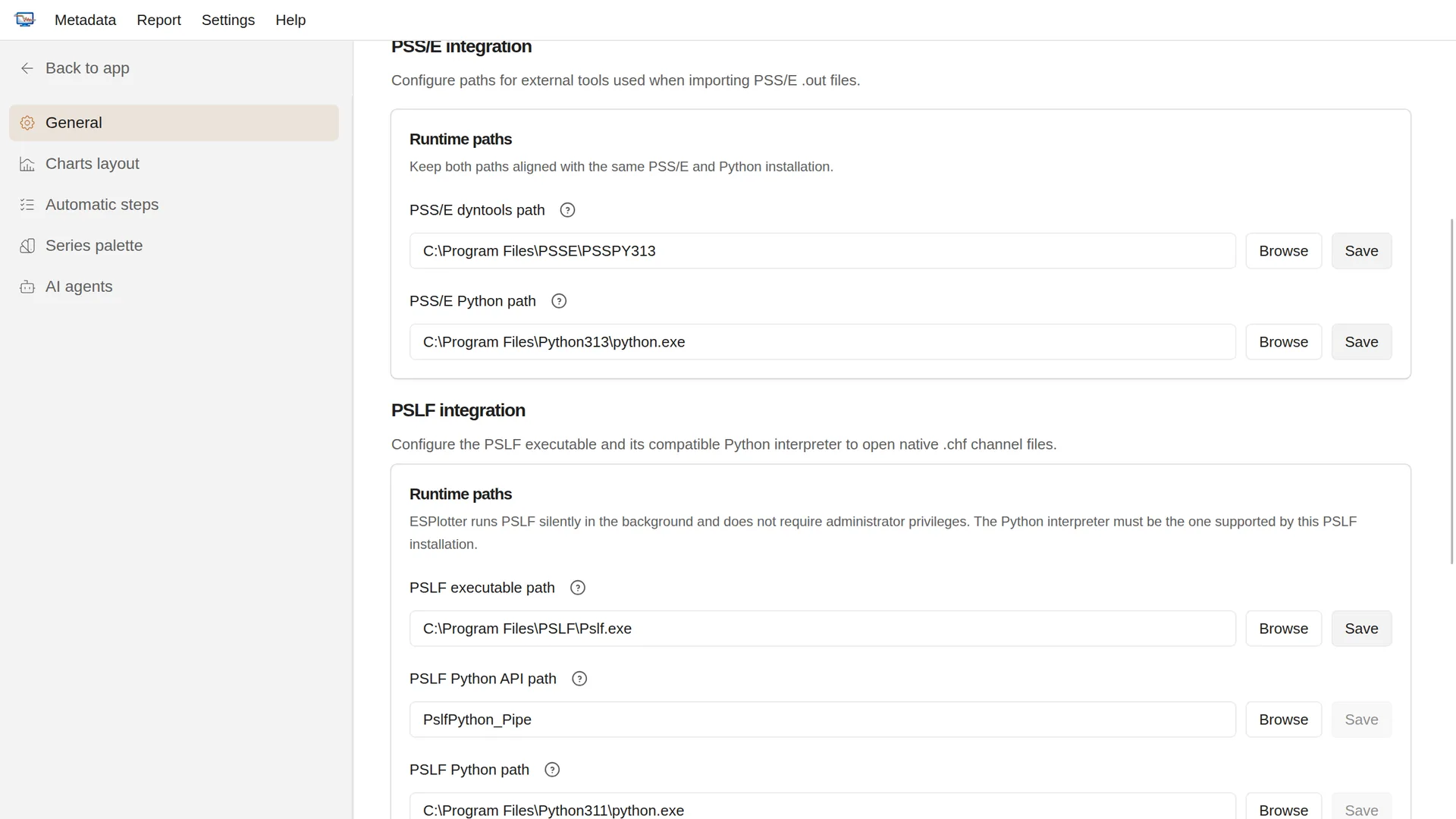
- Open Settings > General in ESPlotter.
- In PSLF integration, enter the full path to
Pslf.exein PSLF executable path. Click Save. ESPlotter checks that the file exists. - Enter the full path to the compatible
python.exein PSLF Python path. Click Save. ESPlotter checks that the file exists. - Check PSLF Python API path. Saving the executable selects a neighbouring
PslfPython_PipeorPslfPythonfolder when it containsPSLF_PYTHON.py; you can also browse to or enter that folder and save it yourself. - Click Test PSLF. ESPlotter loads the bundled
PSLF_dummy_test.chffile without opening the PSLF user interface, then opens the file in the channel sidebar so you can inspect it and close it when you are finished.
If you edit any path before clicking Test PSLF, a successful validation saves those values before ESPlotter opens the dummy file. This keeps the test and the following .chf import on the same configuration.
While the test runs, the button is disabled and shows a spinner with Loading PSLF_dummy_test.chf…. Wait for the result instead of clicking the button again.
When you use Browse for a path, the dialog starts from that setting's existing location. For a file path it opens in the containing folder; for a folder path it opens there. If the location no longer exists, it starts at C:\.
What Test PSLF checks
The test performs the same essential checks used when opening a real .chf file:
- The configured
Pslf.exeexists. - The configured PSLF Python API folder exists. Newer installations use
PslfPython_Pipe; older installations usePslfPython. Saving the executable selects either neighbouring folder when it containsPSLF_PYTHON.py, and the API folder can also be edited directly in Settings. - The selected Python version is compatible with the
pywin32version supplied by the PSLF installation, when that version is identifiable. - The selected interpreter can import the required
pywin32modules:win32api,win32con,win32file, andpywintypes. - Python can import
PSLF_PYTHONfrom the PSLF installation. - PSLF can start in the background, load the dummy
.chf, and export its samples through the native channel-file conversion.
A successful test confirms the complete path from ESPlotter to PSLF, Python, pywin32, PSLF_PYTHON, native .chf conversion, and the normal channel-file opening flow. The dummy file remains visible in the channel sidebar until you close it. It is stronger than checking only that the executable and interpreter paths exist.
Open the file
After Test PSLF succeeds:
- Click + at the top of the channel sidebar (
Ctrl + O) and select the.chf, or drag it into the initial chart workspace. - Wait for the file to move from its loading state to the ready channel list. The conversion may take a few seconds because PSLF is being started and the native file is being exported in the background.
- Confirm that the Time row and the expected channel groups appear in the sidebar.
- Open the Time-channel data table and check that it contains numeric sample values.
- Add a normal channel to a Time Series chart. If channel preparation fails, ESPlotter clears the temporary selection and shows the underlying error in a copyable error message.
The same configuration is used for the file picker and drag-and-drop. ESPlotter does not modify the .chf source file.
Export the data
A .chf file opens as time series and exports as CSV, TXT, or JSON, like any other time-series file. See Export charts and data.
Automate with Python
Headless Python scripts can open PSLF .chf files on Windows with workspace.open_file(...). They reuse the paths saved in Settings > General, so configure them once in ESPlotter. Desktop does not need to stay open, but the PSLF installation and a license from a recent Desktop sign-in must be available. See Headless mode.
Troubleshooting
Run Test PSLF first, because it performs the same checks as opening a real .chf file. If opening a .chf fails, the error notice also offers Open Settings to reach Settings > General in one click.
Interpret the result
- PSLF loaded the dummy
.chffile successfully. The configured integration passed the end-to-end check. - The selected Python version is incompatible. Select the Python version required by the installed PSLF release. If ESPlotter detects a bundled
pywin32wheel, the message includes the expected and selected versions. pywin32modules are missing. The selected interpreter does not contain the requiredpywin32modules. Use the compatible PSLF Python environment and install or repairpywin32in that environment before testing again.- Could not import
PSLF_PYTHON. Check that the configured PSLF Python API folder containsPSLF_PYTHON.pyand that the selected Python version matches the PSLF release. Newer installations usePslfPython_Pipe; older installations usePslfPython. - PSLF could not load or export the channel file. Check that the
.chfbelongs to a supported PSLF release and that its path is readable. Preserve the complete copyable error if support is needed. - The file is rejected because it has no samples. PSLF exported zero data rows, so ESPlotter closes the
.chfimport and keeps it out of the sidebar. The file may have been created after initializing the load flow without running the dynamic simulation. Please run the dynamic simulation in PSLF, save the.chffile again, and reopen it. This is a data-state error, not a Python configuration failure.
Permissions
ESPlotter uses the user's normal Windows permissions for this integration. It does not open the PSLF GUI, request administrator privileges, run simulations, or modify PSLF network cases. If a permission error persists after the paths and versions pass Test PSLF, keep the exact error text for diagnosis instead of changing Windows permissions blindly.
If the problem remains, copy the complete error and follow Ask for support. Include the PSLF release and the Python version you selected.
Related guides
- Supported file formats
- Settings
- Inspect network metadata for PSLF
.savnetwork cases - Troubleshooting